Links
There are two types of links in MG-Picker Studio.
Parent Link
Parent link is only available for select-buttons and the slider handles (which are actually also select-buttons).
Active the link tool  , press one select-button, drag, and link to another select-button.
If lots of buttons need to be linked to a single parent select-button, just select the children select-button first, then press and drag to link them to the parent select-button.
The parent link helps out the hierarchy selection in animator mode, and also gives animators a sense of Hierarchy :
with the parent links been setup, animator LMB double clicking on the parent select-button:
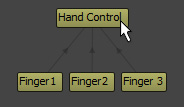
Then he will have the nodes from both parent and all children select-buttons selected in Maya scene:
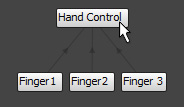
From MG-Picker Studio v1.7, you can connect a select-button to multiple parent select-buttons.
Attribute Link
The attribute link is used by attribute button to control other picker item visibilities.
The source of an attribute link could be any type of picker item, while the destination of the link should always be an attribute button.
Say you have a boolean attribute button, control all the other picker items:
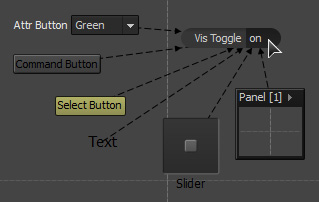
Click on the value area, all the other items will be hidden.
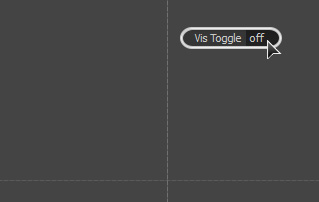
💡 The attribute link is not visible in animator mode, and in animator mode, you could click any part of an attribute button to switch its value.
💡 Not only a boolean value attribute-button could toggle other items’ visibilities, the enum type, or Maya attribute button could do this job.
💡 Since MG-Picker Studio v1.7, any picker item can be linked to multiple master attribute buttons. These attribute buttons together control the visibility of the item. You can set up
and/orvisibility operator to change the behavior of how the visibility is controlled.andmeans only if all attribute buttons got the value that makes item visible, then the item is visible;ormeans as long as one attribute button got the desired value, the item will be visible.
💡 Since MG-Picker Studio v2, there is a relationship panel that helps you understand the visibility relationships.